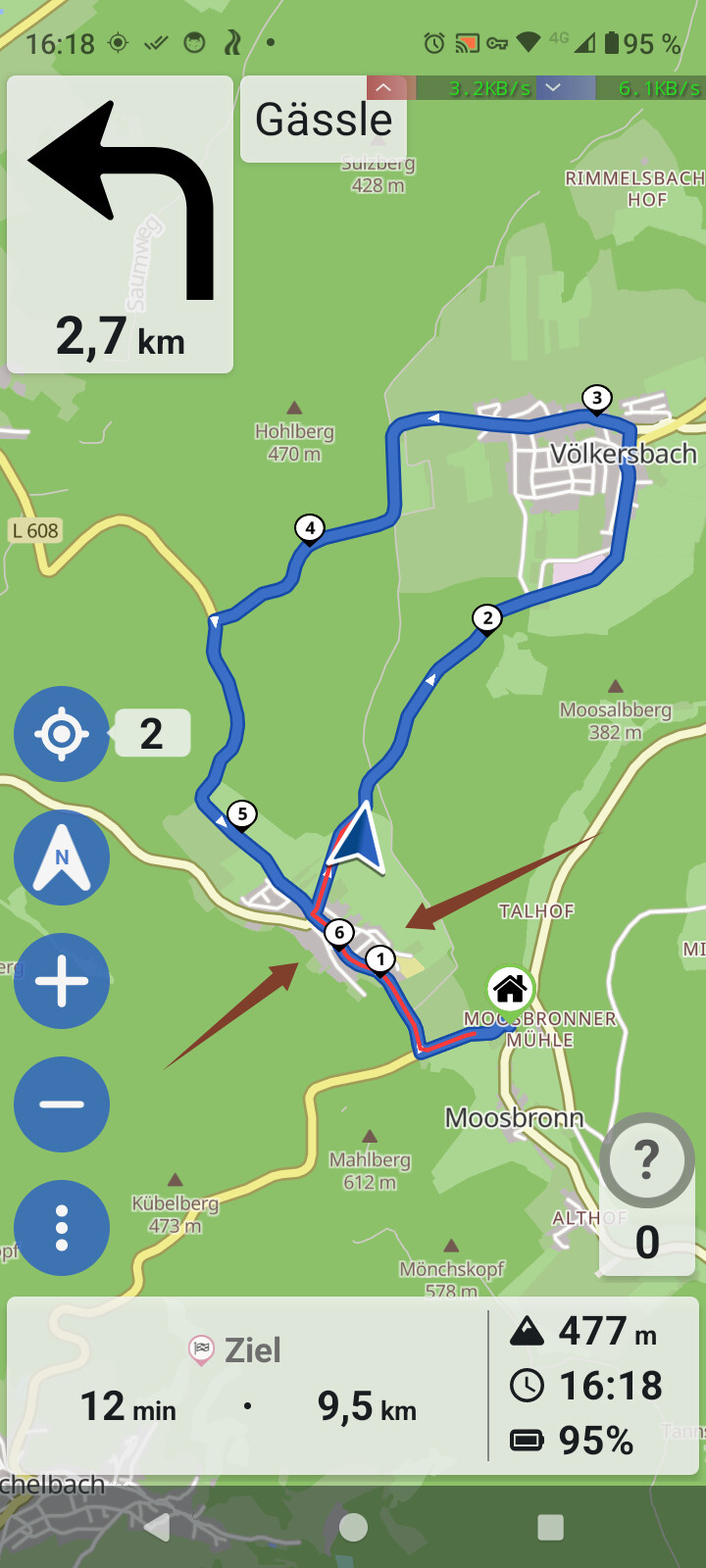
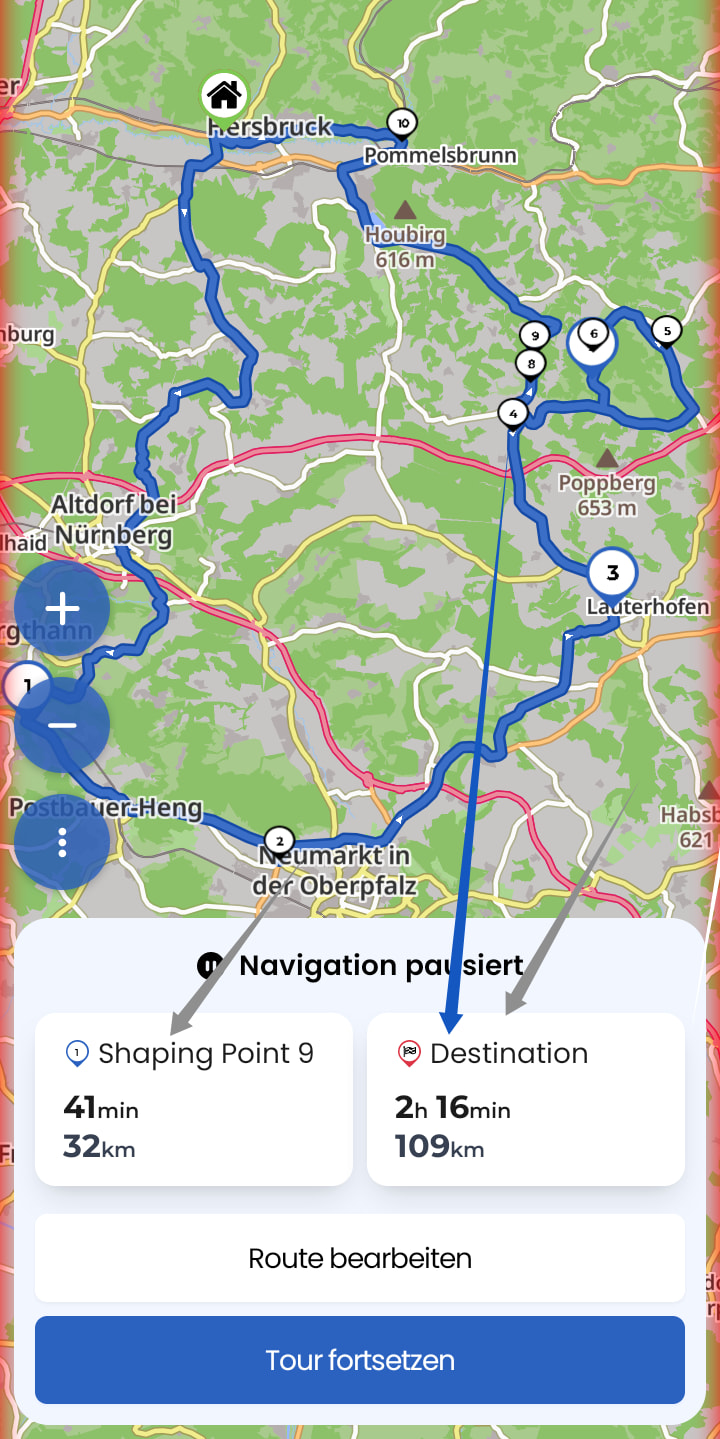
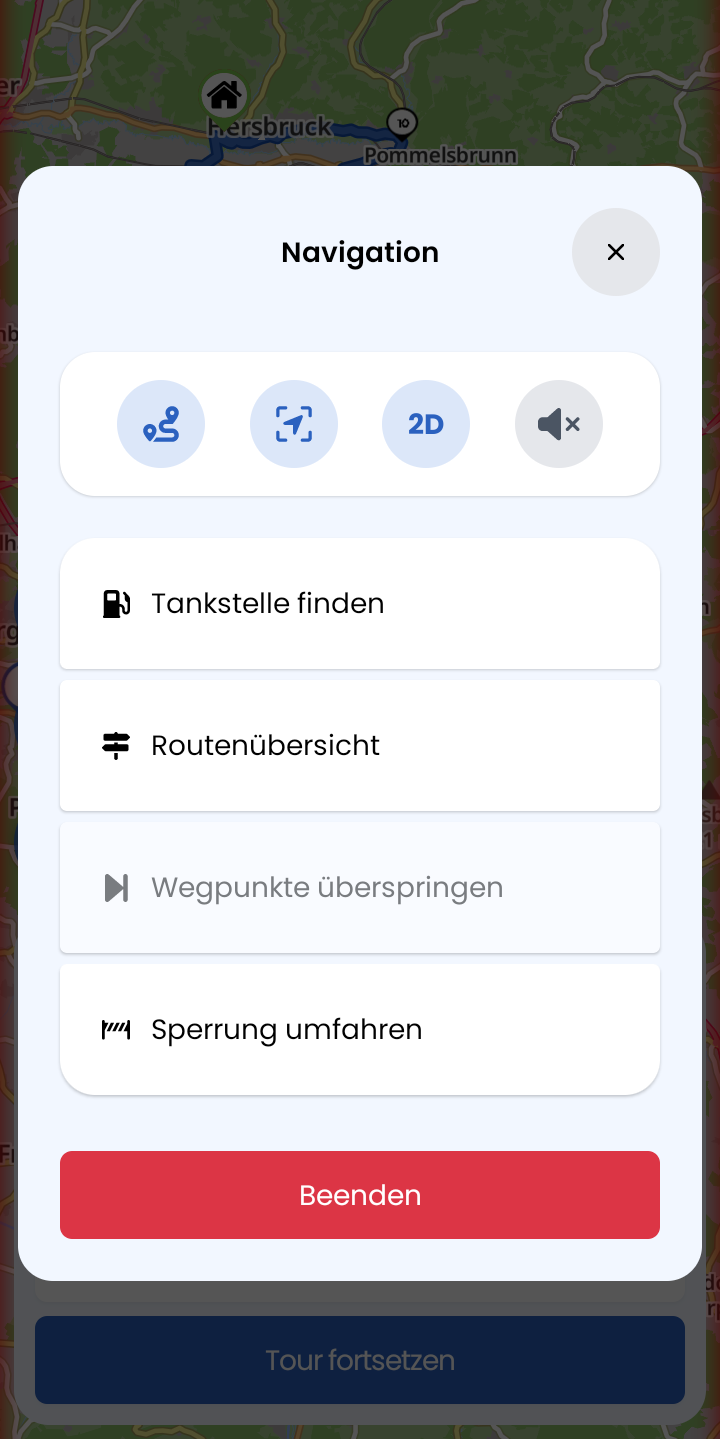
The pause function is actually just a frozen navigation and the app stays in navigation mode. The SPs were already tiny in the navigation anyway, so that hasn’t changed.
The pause function has a few (mostly technical) advantages regarding resumption, recording, and recalculation.
Editing SPs and VPs is still not possible – meaning SPs remain irrelevant. They are there, but I can’t access any info on them above the map view, I can’t move them – I can’t do anything at all. Whether I need to be able to read the number or not – probably not. It’s just one of the many points that determine the route.
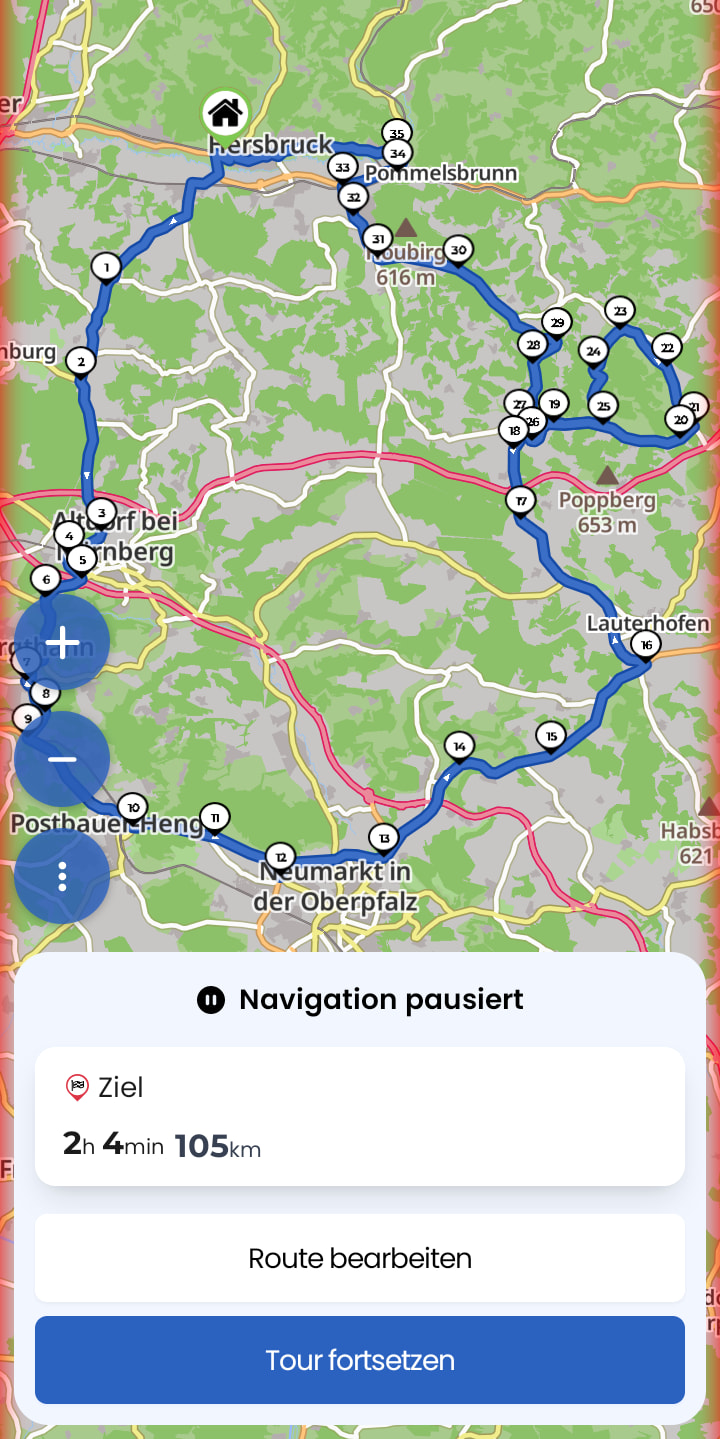
If I use a lot of SPs, all I see in the route overview are the numbered balloons and no map with place names anymore. See screenshot, SPs 18..29. If those had been any bigger, you wouldn’t see anything of the map underneath, even at higher zoom levels.
Let’s download old vs. new and flip back and forth between the images in your preferred app. Yes, the old one was also small, but legible. Maybe it’s time to define a minimum font size in the style guide.
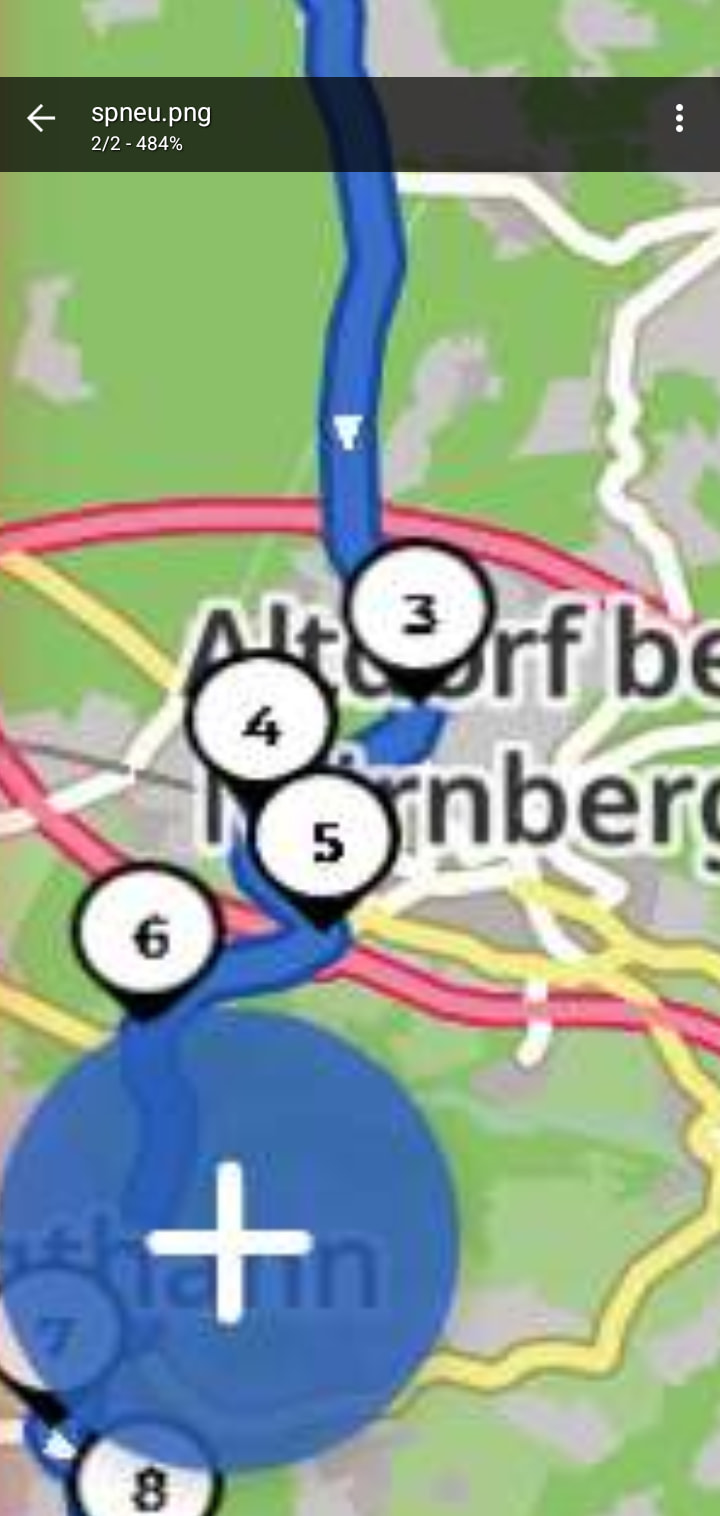
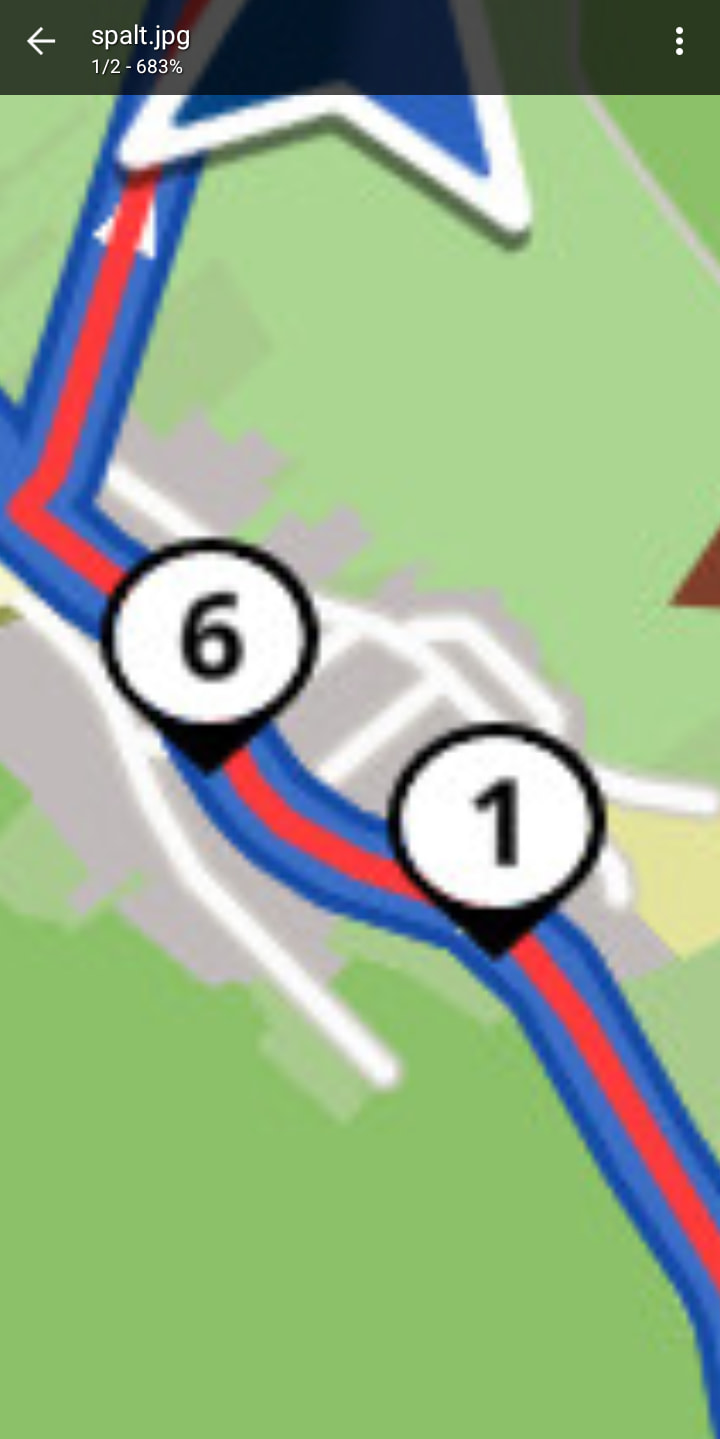
And in detail. New vs. old. Take a look at SP 6.
In the new version, it lacks sharpness and has shrunk—presumably in an equally large or small circle. Therefore, as the first report states, it becomes “illegible”.
With my eyesight, both the new and old numbers look like fly droppings, but you’re right — under a magnifying glass, the old numbers are more appealing.
View of the route to check or discuss how to proceed. Is everything fine or does something need to be changed or shortened?
Break duration is added to the arrival time (One more drink? Hi honey, I’ll be home around X o’clock.)
That doesn’t work — but how brilliant would it be to click on a waypoint (SP, VP, and destination), even past ones, and show the estimated time in the info box?
That doesn’t work — but how brilliant would it be if I could specifically click on a waypoint and skip it?
And via the 3-dot menu, I have the typical navigation features — just in pause mode, where I can do everything at ease.
Skip is unfortunately still an open item. No one has asked for it yet. It’s just one of those “loose ends”, not a disaster, just a shame (always IMHO).
Were the compass and speed display still visible? That would be important to figure out where the error is coming from. If you’re not 100% sure, no problem, just let me know briefly that you’re not sure anymore
Interesting, can you remember if you still saw the speed limit / compass on the map or was that gone as well?
The save button is also in CarPlay. The pause function is also in CarPlay. Ending in CarPlay now actually ends the trip, you no longer need to end it in the mobile app. There were definitely more changes, but I’d say those don’t just affect CarPlay.
There wasn’t really any actual change there. SPs are smaller, but isn’t that already the case for a while?
That would basically be something you could build as an “extra feature” for the pause, so that the numbers get bigger there. The problem you have is that otherwise WPs tend to overlap and you can no longer see the route properly. In the past, there were complaints that SPs were still too big — unfortunately I can’t find the relevant posts right away, but I’d say we adjusted that about half a year to a year ago.
Did you compare the exact same route both times? I rather think it’s because the WP numbers are two-digit, so they have to be smaller, otherwise they won’t fit in the icon anymore.
We can basically discuss whether the SPs should be made minimally larger again, or for all I know remove numbers from SPs entirely, since you have the important numbers on the VPs anyway?
Yes, that was a bigger deal, but it should be coming with the next version.
No, I only have 3.6.7 left on all devices. Hence the workaround with the screenshots. It looks one font size smaller to me. Very hard to read, often not even faintly legible, exhausting. I didn’t feel that way before(?).
That sounds good. If points overlap, I can zoom. From my perspective, a size like the one in planning would be fine.
The pause view feels more like planning to me. Just seeing the overall route as an overview without distractions might look nice, but I don’t see any particular use in it. A “Hide waypoints” toggle would be more useful there, though that’s a different topic.
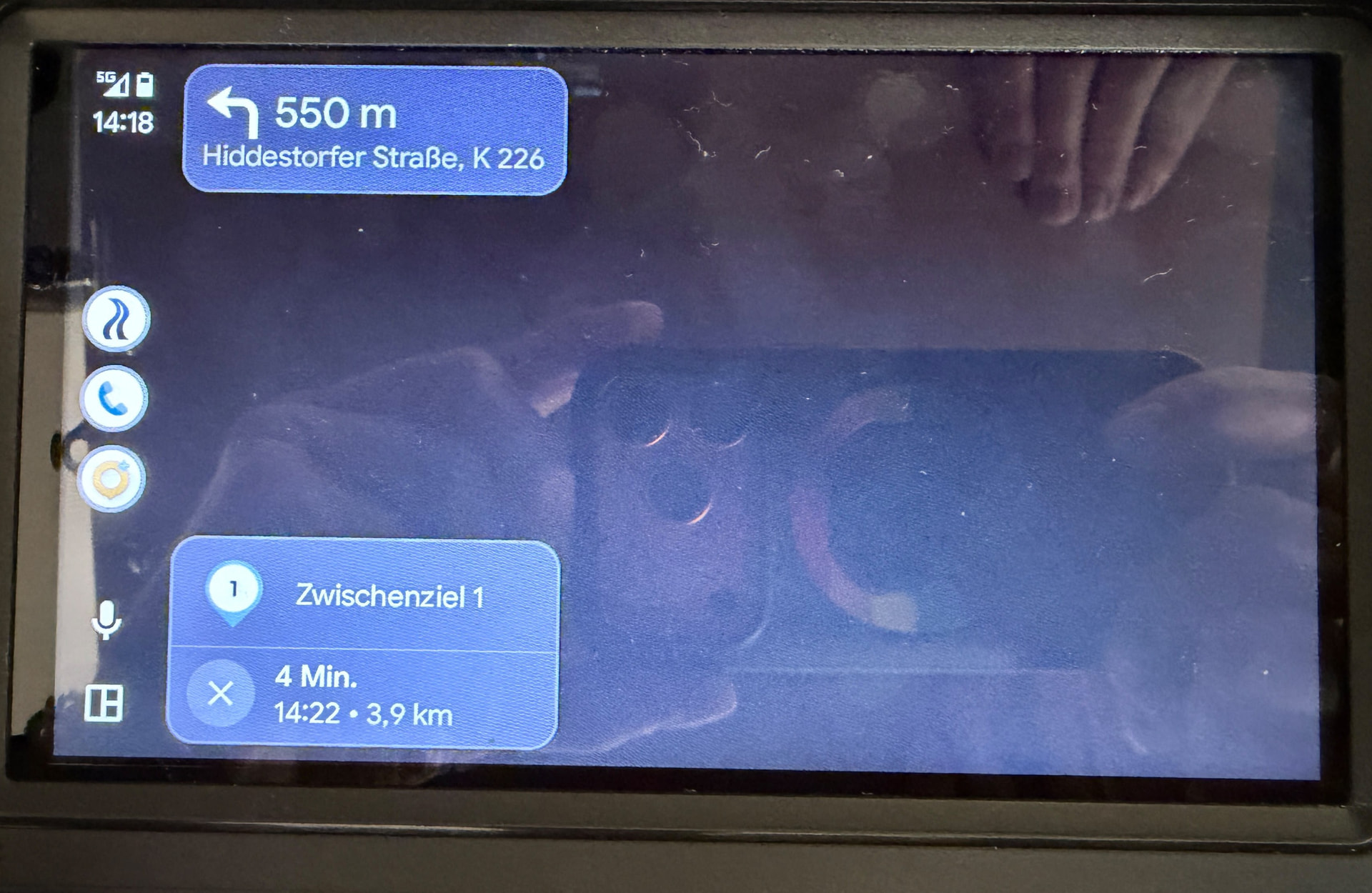
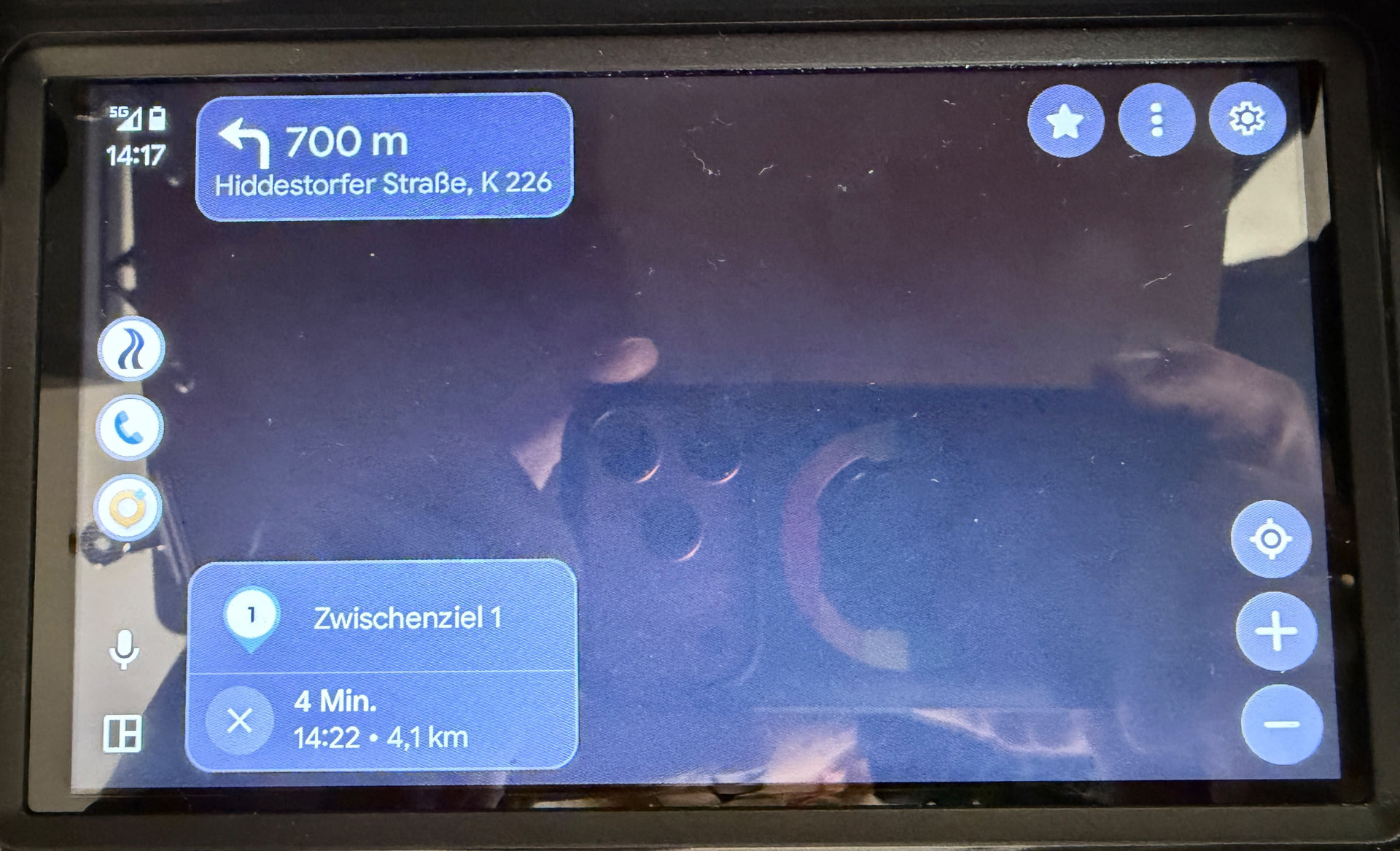
The issue only seems to occur when the Always-On Display is active on the Pixel 11 Pro.
As soon as I move the smartphone and the lock screen becomes active, the map is displayed again.
When the lock screen is active or the smartphone is unlocked and the home screen is displayed, the bug does not occur on the AA screen — meaning that when switching between settings and back to navigation, the map is always displayed immediately.
As mentioned, this is reproducible. I have successfully performed it multiple times in a row exactly as described.
It happens with both the Chigee and the cheap AA test display.