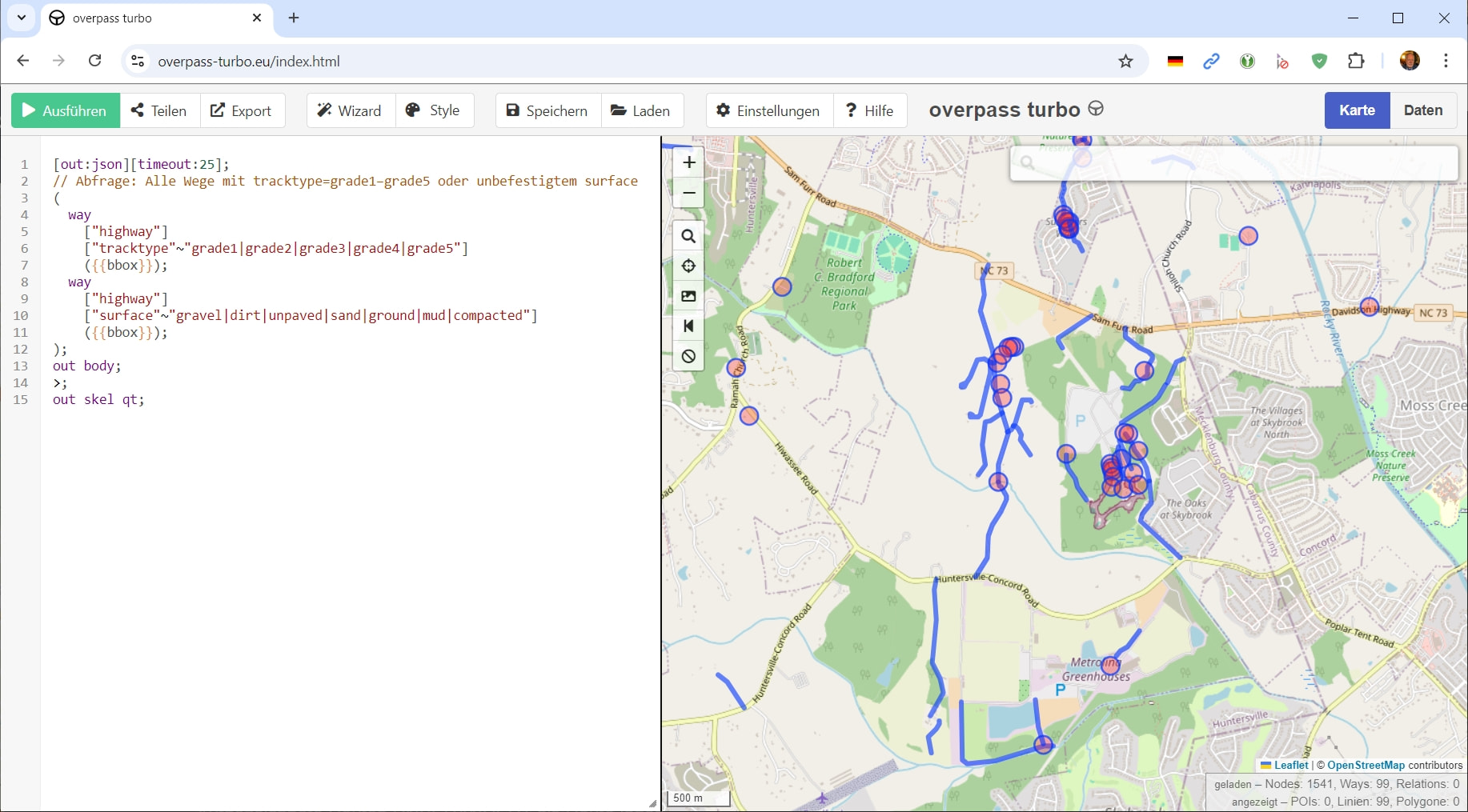
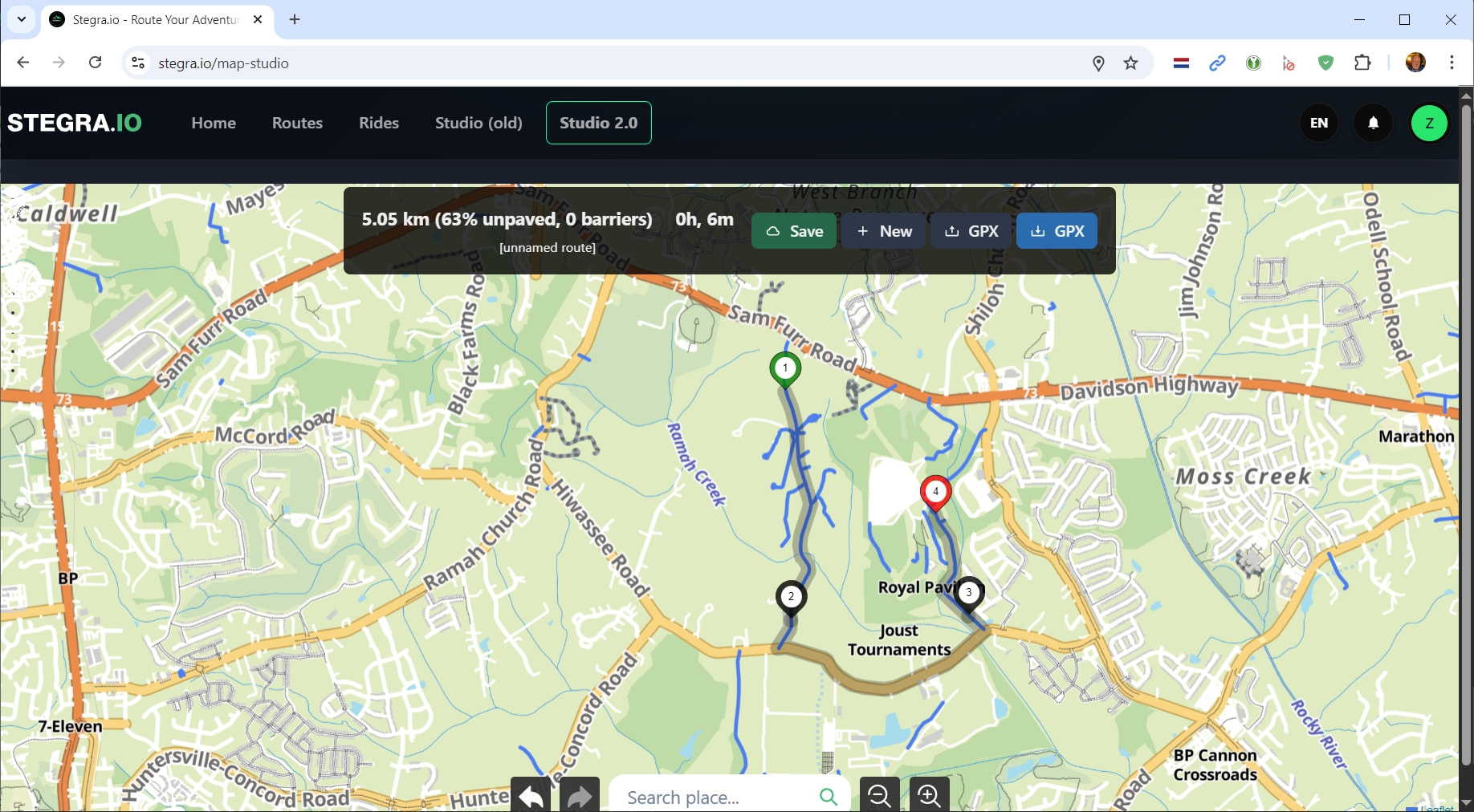
I’m trying to plan a route. I’m using the default map view (of an area of North Carolina, USA).
There is a road that is shown in pale yellow from one end to the other.
If I put a Via point in the middle of the road, to have my route use this road, then the route goes down the road and the whole route still all shows in one color.
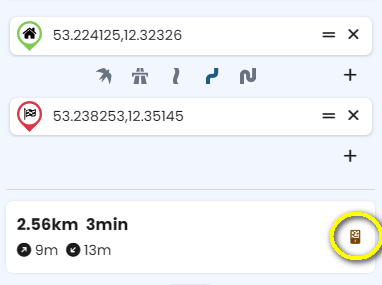
Then I click on the Unpaved Road icon in the bottom right of the waypoint list and it shows me that the middle part of that road is unpaved.
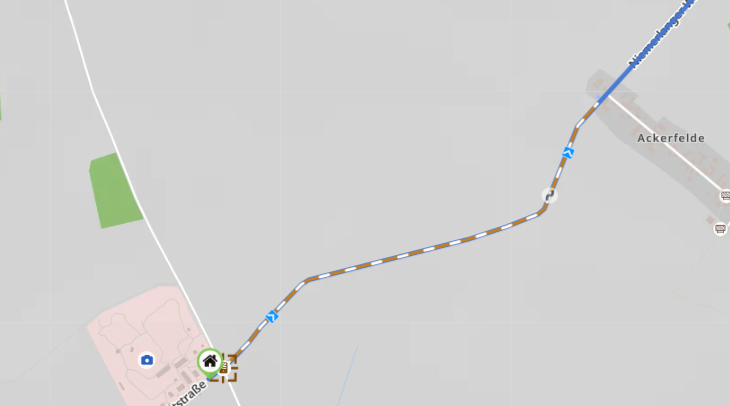
After that, it always shows the portion of my route that goes over the unpaved portion of that road in brown and the rest of my route (including the paved portion of that same road) in blue.
That is in a browser on the website.
In that app it is almost the same except that it seems to show the unpaved portion in brown as soon as I add it to my route. But, prior to putting a waypoint/via point/shaping point on that road, when that road is not part of my route at all, the whole road displays as the same pale yellow color. No indication that part is paved and part is unpaved.
Here is my question:
How can I make the unpaved portion of that road show differently than the paved portion all the time?
I want to see that the 6 mile long road has 3 miles of unpaved section in the middle without having to first add it to my route.
I’m not sure if I’ve got this right, but here’s what comes to mind:
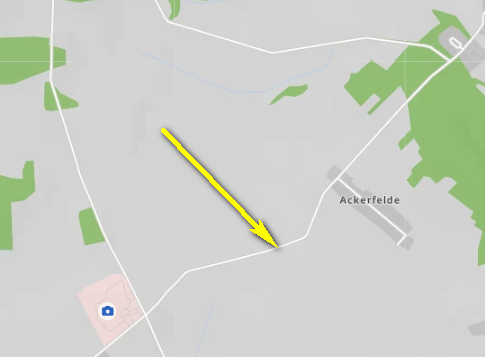
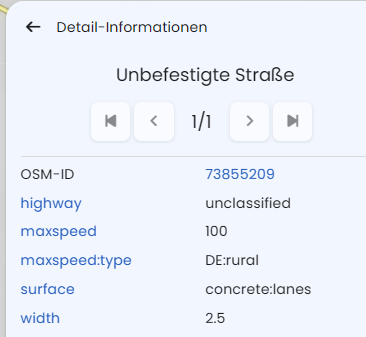
I once looked for a route that met the same criteria, partly off-road, partly paved. It looks like this on the map:
When I am considering a location to add a waypoint, the map does not show whether the road is paved or unpaved. Only after I place a waypoint on the road does it then show that some is paved and some is unpaved.
I infer from your last sentence that there is no way to achieve what I am asking for.
But, it seems that @Maxx18 has understood my question and answered it.
The answer being that no, there is no way to have the map show paved and unpaved differently - UNTIL you add that road to a route and then the route itself will give a visual indication that differentiates paved from unpaved.
You’re right, at the moment, there’s no way to see that kind of information on the map if the route doesn’t pass through the respective road. Some users work around this by using map overlays, for example by displaying GPX files with off-road tracks directly on the map while planning.
I don’t have a specific tip for that myself, but maybe some other users here have a good recommendation where to find gpx with North American offroad tracks?
Yeah, I have other options I can look at. I asked because it would be a lot more convenient to see it in the tool where I’m doing my route planning.
It’s probably still more convenient to just drop a waypoint and let Kurviger THEN show me if there’s unpaved sections or not than to switch over to a 2nd tool just to check that.
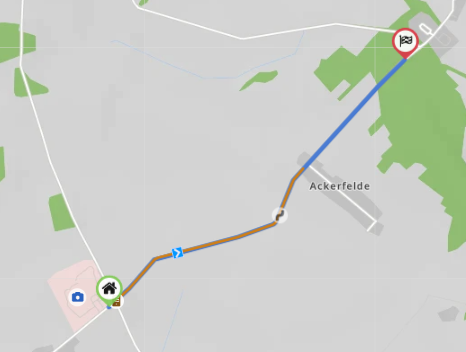
 , the previous image with the marked off-road route reappears.