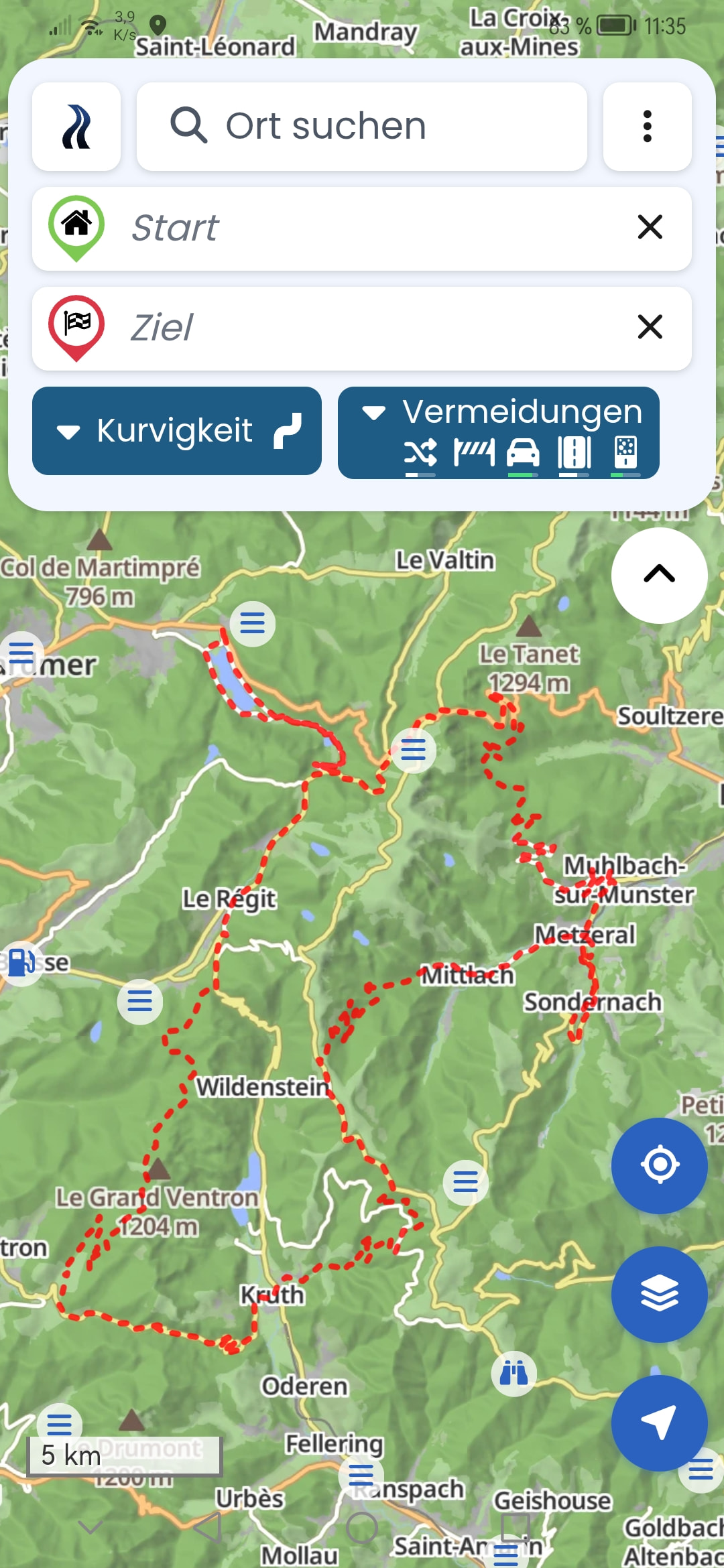
As I have a pronounced red-green color vision deficiency, I find it extremely difficult to see the preview of routes from a cloud folder on the map. Unfortunately, I can barely recognize the magenta dashed lines against the predominantly green map background.
I think it would be great if users could customize the color used for the route preview (and ideally also the color of the currently planned route).
As I have a pronounced red-green color vision deficiency, I find it extremely difficult to see the preview of routes from a cloud folder on the map. Unfortunately, I can barely recognize the magenta dashed lines against the predominantly green map background.
I think it would be great if users could customize the color used for the route preview (and ideally also the color of the currently planned route).
Hello @rudolf.rednose,
Thanks for your feedback! That’s obviously not ideal. I’ll take this back with me and we’ll see what we can do. Unfortunately, it really isn’t a very easy task to find colors on the map that are easily recognizable for everyone and also generally well distinguishable from other map elements.
I don’t know how much this really helps, but Apple devices have the option to apply color filters to all content, which is meant to help people with color vision deficiencies. This even works on CarPlay.
This also works on Android devices. I cannot verify the effectiveness myself. The setting is even available on my Android 8. Found under accessibility settings. Worth a try.
Also a good tip, but it doesn’t solve my problem because what I actually want to do doesn’t work on mobile at all: when I open a cloud folder on my PC, all the routes contained within it are displayed as a dashed magenta line (straight from point to point) as a preview. Here I would need the option to display the routes in a different color.
I understand your wish, but as explained by @Kira - it’s difficult to find a color combination that suits all users. One solution would be to allow colors to be customized individually. That is something that cannot happen overnight, even if the developers adopt the idea.
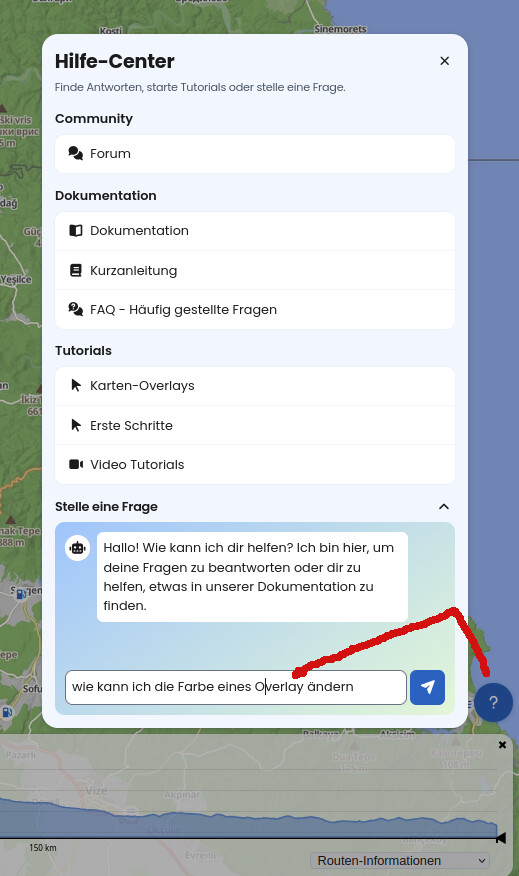
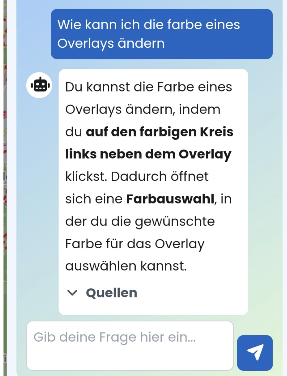
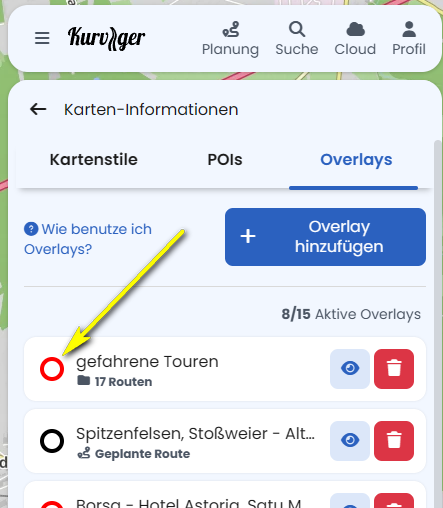
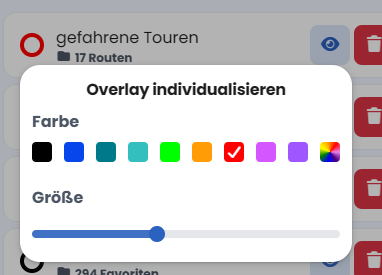
For overlays, the colors and thickness can already be adjusted. The line style is still missing. Making the route color adjustable shouldn’t be a programming challenge, and this isn’t a new discussion either. Since I also have red-green color blindness, this is an important topic for me too.
By the way, 8% of men have a color vision deficiency, with red-green color blindness being the most common.
For example, this overlay is very difficult for affected individuals to see:
Actually, this only partially fits this topic, but I’ll tack it on here anyway.
What Rudolf describes here—I am also one of the 8% of men with red-green color blindness—applies just as much to the display of the track, meaning the route just traveled.
Unlike with overlays, however, as far as I know, there is no way to change anything about how they are displayed.
It would be helpful if you could either adjust their color or at least their width.