Kurviger Tourer+ on Android 13. Issue: can’t get GPX import to work as I would like (MyRouteApp is my route library, importing GPX 1.1 files).
I come from Kurviger Pro 1.0 where it was easy enough: import a gpx, choose to show the track and route based on the waypoints. Usually there were some differences but I could solve that by long pressing on the track and adding a way point or shaping point. Also, the track would remain visible on the map as a red line.
This is my feedback on the GPX import interface in 3.5:
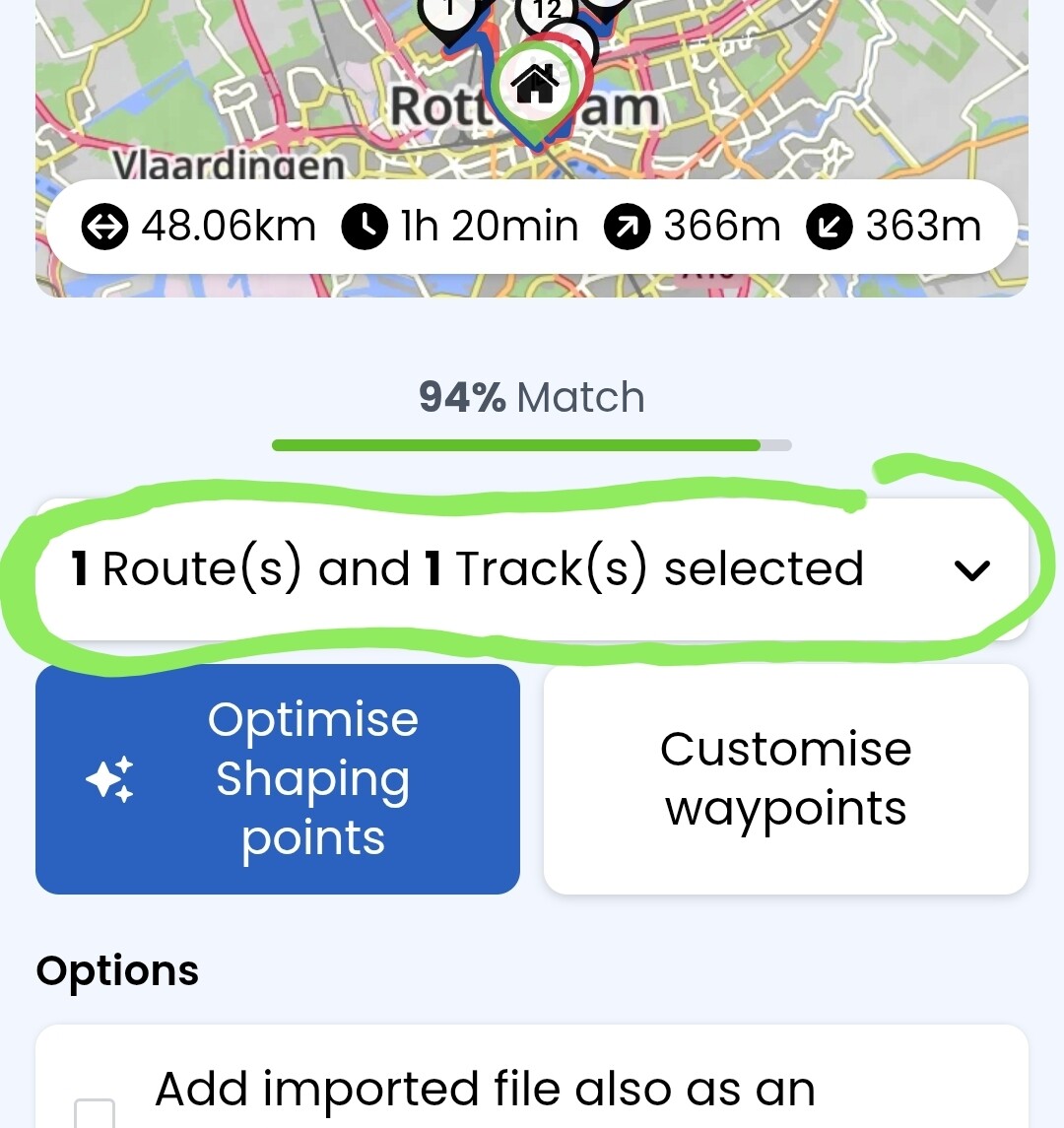
The blue button Optimise Shaping Points seems senseless to me, as it always reduces the match with the track as opposed to increasing it. Also, can’t find in the docs what it’s supposed to do.
Clicking through the differences with the manual workflow is a nice idea, although not exactly self-explanatory (and undocumented, I think).
Adding waypoints in this workflow is really error-prone: the idea seems to be that I have to long-press to add a waypoint and then to single-click it again to modify the route? Sometimes the long-press doesn’t work. Sometimes the single-click doesn’t work. Hmmm. (Also: the app says to remove waypoints with a right-click?? Long-press seems to work.)
Finally, if I choose “Add imported file also as an overlay” I get a crazy red dotted-line that directly connects the waypoints with straight lines. Apparently there is no way to keep the red track visible along with the blue route, as I was used to?
All in all, in its current state it’s a bit cumbersome to use as a navigator for non-Kurviger GPX’es – which is my main use case.
Hi t00thl355 thanks for asking. GPX enclosed – but note, the issue is not with the GPX import itself – that works no better or worse than it always did.
My issues are (a) with the process of adding shaping points to make the route match the track and (b) that I seem to have lost the option to show both the route (in blue, typically) and the track (in red) while navigating. Rondje oefenen.gpx (53.3 KB)
If you expand this field by pressing the “v” the right side, you will see the exact content and be able to select what you want to import - in case of your file you can inport only track, only route or both at the same time:
Import only route
Here, only the waypoints (shaping points) are imported and Kurviger calculates the route between them according to the selected options. In your case you end up with start, end and 13 shaping points between them. In case where some shaping points are POIs where you would like to stop, you need to convert them to via points manually - after the import. Downside is that the track (if available) is not considered at all an the route may be completely different. Especially if you have offroad sections, the imported route may miss them completely.
Import only track
Track consists of hundreds or even thousands of waypoints which are very close to each other and describe the path very precisely. To make the route out of the track, the import algorithm selects a couple of waypoints and applies the routing algorithm to them. The resulting route usually does not match the track 100% and this is the percentage that is displayed. When you press “Optimize Shaping points”, the algorithm tries to find a set of shaping points that will better match the track, when the routing algorithm is applied. Usually the percentage goes up, but I had cases where it went down, so a bit of homework is still there for developers. Downside of importing only track is that the POIs from the route are not imported and may need to be placed manually.
Import route and track
This combines both approches from above allowing you to keep your POIs and have a route closely matched to the track. This sound like the best solution, but if your POIs are not directly on the route, the result might be quite messy with lot of places that need to be corrected manually. Another apparent downside is if you add both track and route to the overlays, the “route” will show your waypoints with straight lines, which you mentioned in your post. To remove this, you have to go to overlay manager and deselect the route:
This way you get your blue line to navigate and your red dashed line from the original track.
Your GPX is an almost ideal case with one route and the corresponding track. Sometimes you get GPX from a magazine, a book or a website with multiple routes, multiple tracks and even loose waypoints. Trying to import everything in one shot will almost certainly create a mess that will be difficult to correct manually. In such cases you should try importing routes and tracks one by one or in pairs.
Finally, a hint regarding the manual optimization - to add shaping point during import, you have to tap on the red line. It took me a while to figure this out - it is not really self explanatory. The problem is here that sometimes there are two roads close to each other and you tap the red line and the wrong road gets selected. There is not much that you can do here apart from trying to select another point on the red line or correct manually after the import.
I hope this helps better understand how to interact with import. It still has space for improvement, but it is way more powerful than the old one.
Wow, thank you very much! That’s a whole set of documentation right there - I hope this gets added to the official docs.
A few remaining points:
To customize the overlay you have to click on the red circle to the left of the gpx name. That took me some clicking around to find. And I still think having to go to the overlay manager to simply show the track is a bit of a faff compared to how it works/worked in Pro.
Adding waypoints or shaping points by tapping on the red line (the track, not the route) doesn’t work. If I’m lucky (so not always!!), a long press gives me a small circle (first image) which I then have to click again to make it active (second image). Sometimes the circle will disappear instead. Same behavior on Samsung A24 phone and Carpe Iter Pad 4c - both running 3.5.9. See images.
On your screenshots, the route appears to be slightly different then on mine, but nevertheless. Here is a screen recording how it works for me. The taps are much shorter then the yellow spots in video suggest (I guess otherwise they would be difficult to see):
@boldtrn do you have any idea why the taps do not work for @kleynjan as they do for me?
Yeah, your video shows exactly the behavior I would expect, also based on Kurviger Pro. But in Kurviger Tourer (still not sure what to call it), a tap really gets me nowhere. Believe me, I have tried!
If you want to make distinction from earlier Kurviger version (1.x.y - included “Pro” paid version) people usually use “K3” (indicating the versions 3.x.y) for the current development.
Have you tried it in a browser on a PC? It works slightly different with the mouse and you could also remove the shaping points).
Until we get the response from Robin about the possible cause, it might be helpful to post the “Debug info” from your app (found at the bottom of the “Settings” menu). This would give the developers some additional information about your setup.
The hint from @t00thl355 for Webview is good. For some reason at least for me, the Webview does not appear in the updates, so I check regulary. The Webview is important, as Kurviger is a web based application in large parts.
@toffel thanks for the tip. I have updated the Samsung phone to Android 15 with webview 138.0.7204.157. Can’t find a more recent webview to install on the Play store. Reinstalled K3 just to be sure. Unfortunately the problem persists. I will check tonight if there are other variables that influence it (gpx, import method, etc).
OK I’ve tried all permutations, the issue remains. See screen recording of issue with customising waypoints One thing I have noted is that the sensitivity to accept a tap as being on the track is probably too high. But that doesn’t explain the phenomenon of a blue circle appearing without the route being adjusted.
Yup. You have to be spot-on on the red line. This could be improved a bit. So, the tap works on your devices, but you have to be super precise?
Long press is used to remove shaping points from the route. The blue circle appearing after a long press is probably a small bug in the visualisation.
I am not sure what is the intention of the blue circle. It shows the last added SP after a tap. After long press it could show the spot where the removed SP was, but it doesnt work this way.
TBH, I switched to importing routes on the laptop, since it is much easier to hit the red line with a mouse pointer than with a finger tap.
As far as I know it is just this. I think it is not relevant, no need to wonder. I must admit, a little bit strange, that it happens here without deleting. Perhaps the tap is just a little bit too long?
Edit: Could just reproduce the blue circle only; it appears when the click is too long.
I only know it this way, that you really have to be super precise and the tap may not be too short and not too long. Also for me, not every tap wins a prize.
I just tried with such a pencil, which can be used for capacitive touch screens, works very fine. Useful and comfortable, not just to handle this.
Of course I would be grateful if the devs can improve the tap-on-the-track behavior at a later time. But while It’s a bit of a fiddle, with what I’ve learnt I can at least import my GPX’s.