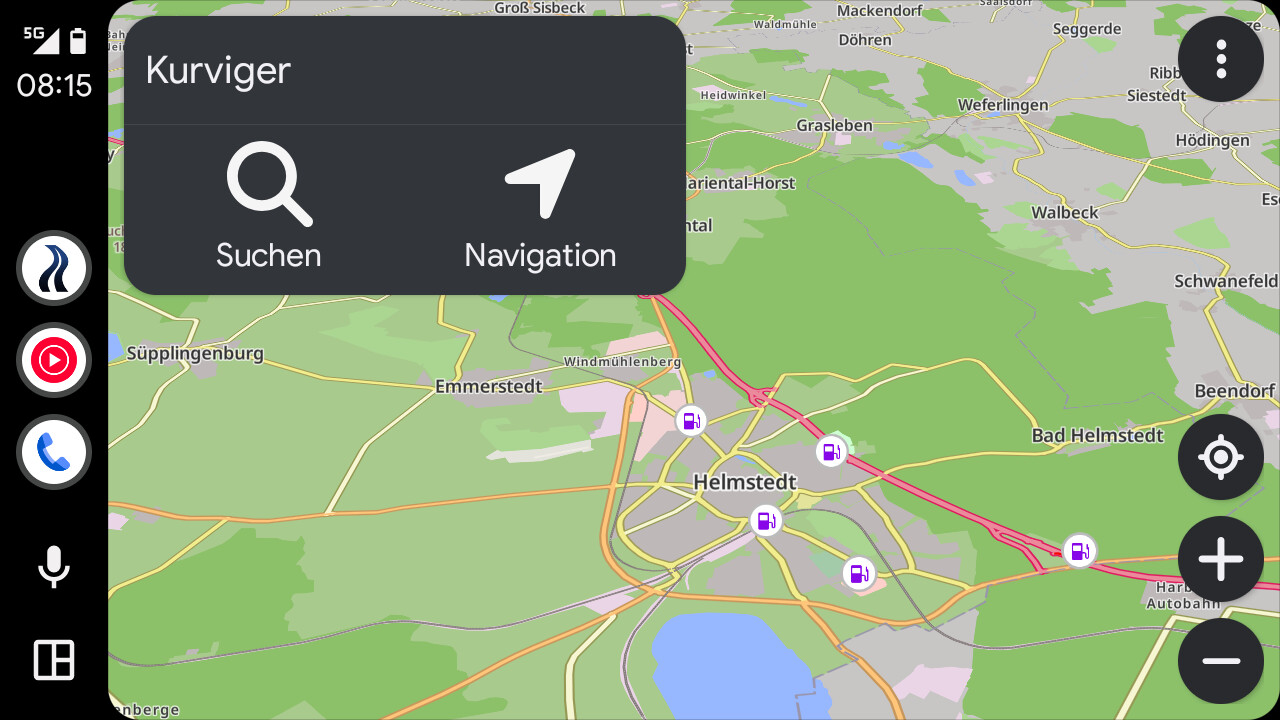
I’m currently looking at various apps to decide which one I’ll use for navigation on my motorbike. Kurviger seems like a good candidate, but what I find really annoying is that when there is no active route, a quarter of the Android Auto screen is blocked by the gigantic block in the upper left corner that only has two (equally gigantic) buttons.
I tend to just have the map view open even when not navigating so I can see where I’m going and what my surroundings look like, but for this purpose I currently very much prefer Google Maps as it’s much less intrusive to the map display. Am I missing an important feature or is there no way to disable this waste of screen real estate?
Option1: use Follow mode without route - it is a bit pain in the ***, that you have to delete the route first and start folowing mode, but that is what you are “supposed” to use.
Option2: use split screen on AA - there you at least have some music player instead of buttons.
I am also not a fan of big buttons.
No buttons would be ideal.
Yeah, follow mode is what I found out as well. Will try deleting the route to get a cleaner view. Thanks for the hint! Auto-hiding the buttons could be an idea for a new feature though. Or making their size configurable. I’m using the BMW wonder wheel, so I don’t need glove-compatible button sizes.
That’s the thing with AA, we can’t change sizes. Except for Google Maps (they don’t seem to play by their own rules), all AA navigation apps pretty much look the same, as AA is providing the guideline, we are just providing the content.
@Smoerrebroed probably means the two “gigantic” buttons, when neither the navigation nor follow mode is active.
No other app that I know (TomTom Go, MRA, Blitzerde…) uses such big buttons when the navigation is not active. I think it would be good to hide them or make them as small as the other buttons. Just having a map without having to delete route and activate follow mode would be sufficient.
FWIW, I just cross-checked in my car with an ultra-wide display. In that setup, the buttons only occupy 1/3 of the screen width so it seems that the absolute size is somehow fixed.
There are quite a few, including Google Maps, OSMAnd, HERE Wego, Organic Maps - these do have even more than two buttons, so for some apps, the whole left side is covered with buttons
The goal of this screen is to start the navigation (or follow, if you want that) as fast as possible. Therefore, we add big buttons with clear labels.
The size of the UI is determined by AA, we can’t influence the size.
Not just that. The goal is to have a clear view on the map if I did not load the right route or deleted the route.
Use case:
Every time I ride a bike, AA automatically connects with the bike and I get the Kurviger start screen with two buttons.
Not every time I ride a bike I want to navigate or track my ride (I also commute), but there is still an added value of having a map in front of you.
In this case it would be beneficial if I could have as much of the map visible without obstructive buttons that I do not intend to use.
In my case, I commute more often then I navigate a route, so hidden or smaller buttons would be desirable.
Maybe you cannot change the size, but you can obviously choose smaller elements, you just decided to use the big ones:
Following some more testing, I found that (1) 3D view doesn’t work in follow mode on AA (only 2D and North-facing, despite the message that 3D mode is active) and (2) deleting a route doesn’t seem to be permanent and can only be done on the phone rather than in the AA UI - which makes it even more inconvenient.
I noticed, but somehow it did not swtich to the 3D view (in follow mode).
I means that I delete a route, then switch to follow mode and enjoy the map display. A day later, the route pops back up and I need to delete it again.
If I then tap the back arrow (in the Android navigation bar), the route is immediately deleted. But if I restart navigation immediately by tapping the navigation symbol, naturally the route is active in follow mode.
Not sure if this error message has anything to do with it:
Thanks for the explanation, I can’t reproduce it like you describe the issue. Maybe there is something more to it, will need to look into this some more.
Probably, if the route is shown after that error message.
@boldtrn: As far as I remember this feature to go back in the history should be removed? Does not explain the issue, but perhaps why the route is “some kind of deleted”, pressing the back button. For me, It is an unexpected behaviour in an app.
It seems that the reappearing route comes from the fact that I previously deleted all waypoints - which seemingly also deletes the route. When I use the “delete route” function from the menu, it stays unloaded. So an empty route brings back the waypoints whereas a deleted route doesn’t come back, even if both actions’ results look the same at first. I think that could be more intuitive (and still doesn’t explain why the waypoints come back).
I have tried with two different routes and the behavior is the same. (After all, I’m still trying to decide whether I should go with Kurviger, so I don’t have a ton of routes loaded.)
Yes. The thing is: Everything else seems to be working fine after the error message is displayed. Also, I just noticed that I get the same error message in the web UI - with or without a route loaded. The difference is that the web UI doesn’t magically bring back the (partial) route after a restart, not even if I “only” delete all waypoints.
Yes and no. I just did this, and there were no pink errors. After I logged in with my profile, those started popping up.
Message: Uncaught TypeError: Cannot read properties of null (reading ‘type’) - URL: undefined -Line: 2 - Column: undefined -Error object: {}

(Debug information, this helps us helping you, you can remove this if you don’t want to share this data, it should not contain any personal or sensitive information)
Device: Xiaomi - 25010PN30G - Android: 16 - WebView: 144.0.7559.132
App-Version: 3.6.0 - 6612
Screen: 385 x 854 px - 3.75dppx
 Or making their size configurable. I’m using the BMW wonder wheel, so I don’t need glove-compatible button sizes.
 - these do have even more than two buttons, so for some apps, the whole left side is covered with buttons